

4. AI post-processing
Inhalt
4. AI post-processing
Text recognition sometimes makes typos, and layout detection does not always guess heading levels right. An AI can correct both afterwards. This is optional; Cnvrtr works just the same without it.
Good to know: AI can slow down conversion a lot, even with the local Apple Intelligence. With an external provider, the content of the document is sent to that provider.
Turn post-processing on in the AI area with Apply AI post-processing to every conversion. While it runs, Cnvrtr shows AI refinement: part 2 of 5…. If it takes too long, finish the conversion with Finish without AI.
Methods
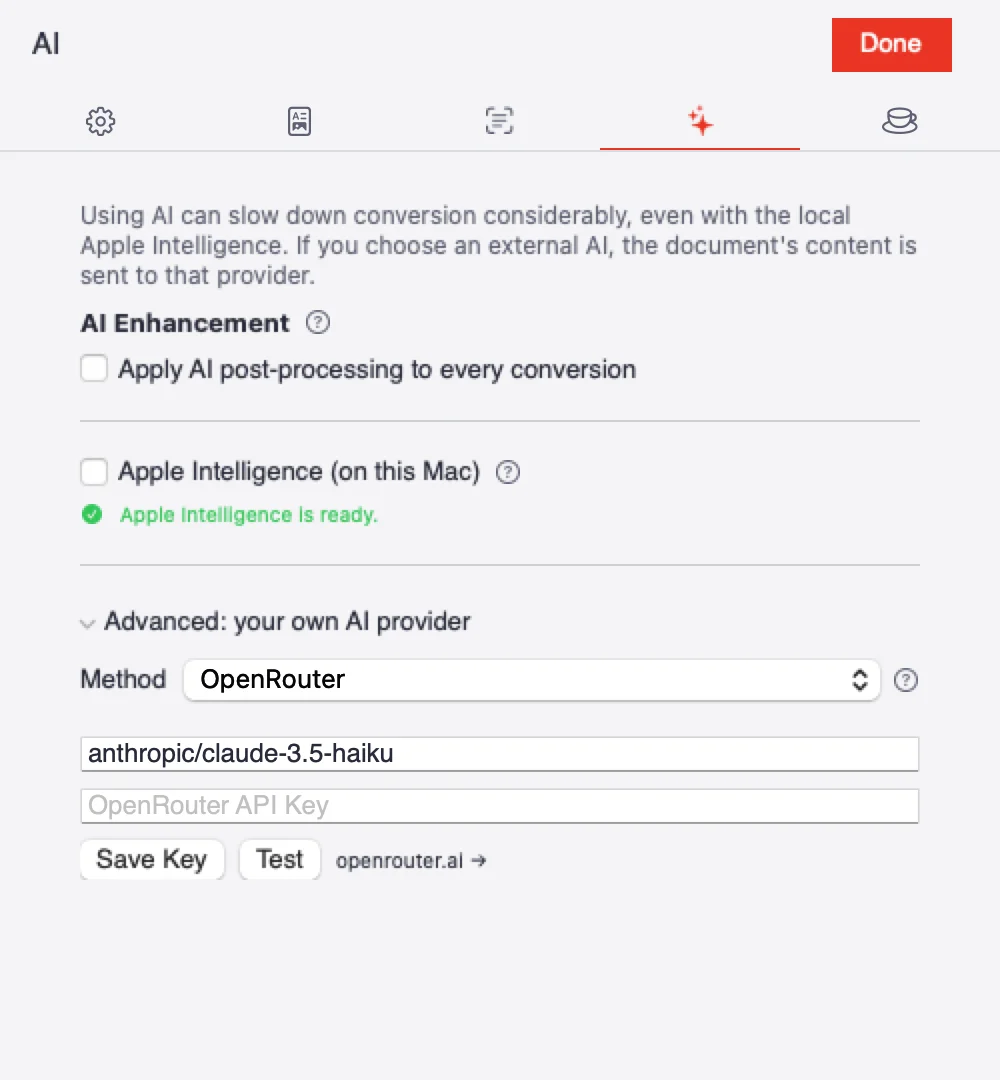
The AI area with the notice, Apple Intelligence and your own provider.
| Method | What you need | Where the data goes |
|---|---|---|
| Apple Intelligence (on this Mac) | macOS 26 and a Mac with Apple Intelligence | Nowhere, everything stays on your Mac. Free, no account. |
| Local Model (Hugging Face) | Ollama on your Mac (brew install ollama) | Stays on your Mac. The model is downloaded once. |
| Ollama / Open-WebUI (local/network) | A running instance on your own network, for example on another Mac or a NAS | To your own server. |
| Provider API | An API key from Anthropic, OpenAI, xAI or Google | To the chosen provider. Billed by usage. |
| OpenRouter | An OpenRouter key | To OpenRouter and the chosen model. One key for many providers. |
Apple Intelligence is the easiest choice if your Mac supports it. The other methods are under Advanced: your own AI provider.
With providers on the internet (Provider API, OpenRouter), the text of your document leaves your Mac. That is why Cnvrtr asks with External AI enabled when you turn on post-processing with such a provider. It is only on after Understood, enable. For confidential documents, use Apple Intelligence or a local model.
Setting up a provider
- Choose the provider under Method.
- Enter the API Key and click Save Key. Cnvrtr stores it in the macOS keychain.
- Click Test to check the connection. If it works, Cnvrtr shows Response received: with the AI’s answer.
For Ollama, enter the Server URL instead of a key, for example http://192.168.1.20:11434, and the model name.