

2. Converting documents
Inhalt
2. Converting documents
What Cnvrtr can read
Supported input
| Input | What happens |
|---|---|
| PDF with a text layer | The text is taken over directly, without OCR. This is fast. |
| PDF without a text layer (scan) | Each page is read as an image and recognised with OCR. |
| Images: PNG, JPG, TIFF, HEIC | Treated like a scan: text recognition with OCR. |
The result is a document you can keep editing in Word, Pages or LibreOffice. Cnvrtr carries over headings, paragraphs and the page format from the original as well as it can.
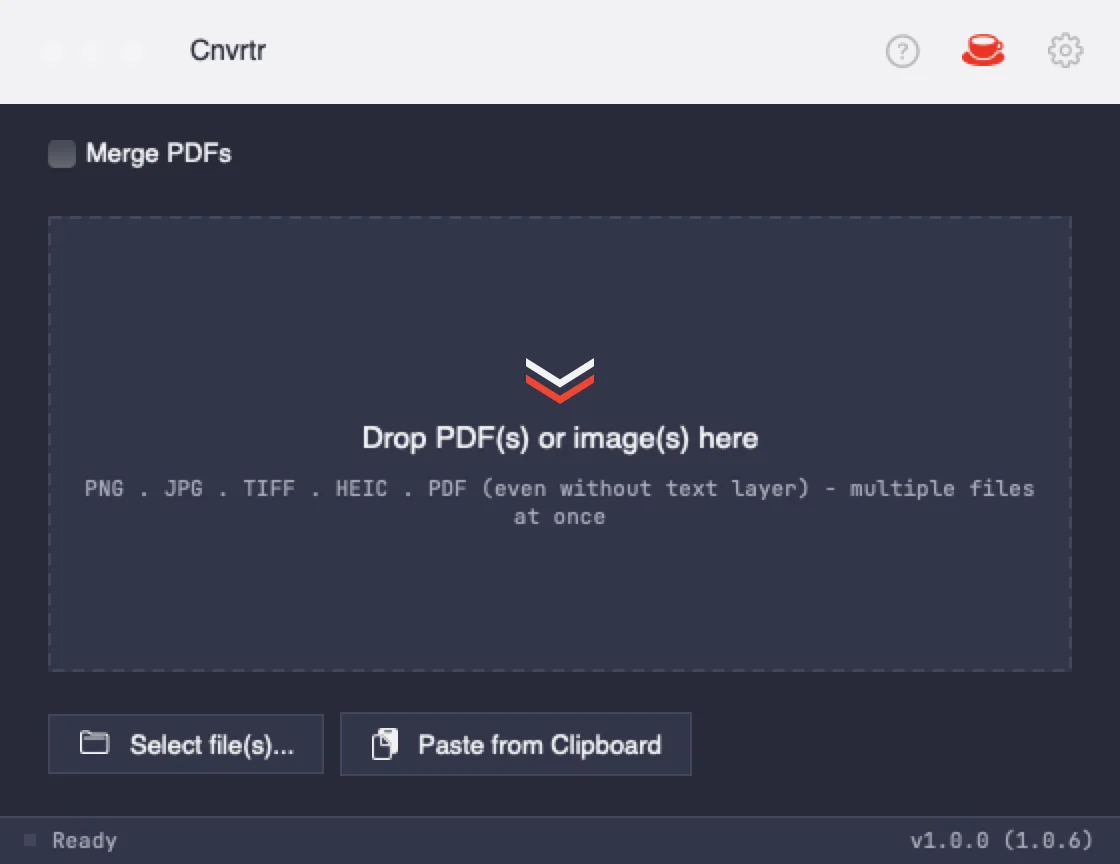
The main window in dark mode.
Converting a file
- Drag the file onto the area Drop PDF(s) or image(s) here. Or click Select file(s)….
- Cnvrtr shows the progress, for example Running OCR (page 2 of 5)… and then Creating Word document….
- Unless set otherwise, Cnvrtr asks for a name and location. When it is finished, you see Done: with the file name.
If Automatically open converted document is on in the settings, the result opens right away.
To stop a running conversion, click Cancel.
Several files at once
If you drop several files at once, Cnvrtr asks:
- Merge into one Word document: all files end up one after another in a single document.
- Create a separate Word document for each file: you choose a destination folder once, and Cnvrtr saves all documents there.
Merging PDFs
With the Merge PDFs checkbox at the top of the main window, you combine several PDFs into one before anything is converted. The order of the dropped files sets the page order.
Then you choose:
- Recognize (convert to Word): the merged PDF is converted as usual.
- Save as PDF: Cnvrtr only saves the merged PDF, without converting it.
Pasting from the clipboard
If you copied a photo on your iPhone, insert it with Paste from Clipboard; Handoff brings the clipboard over to the Mac. This also works with images and PDFs you copied on the Mac.
Sharing and printing the result
After a conversion, three small icons appear at the top right, above the drop area. Hover over them to see what they do:
Sharing and printing
| Icon | What it does |
|---|---|
| Share (box with arrow) | Sends the document by Mail, Messages or AirDrop, depending on what is set up on your Mac. |
| Print (printer) | Opens the document in Word or Preview, where you print it. |
| Show in Finder (magnifier) | Opens the folder with the finished document. |