

3. Settings
Inhalt
3. Settings
Open the settings with the gear in the top right of the main window or with ⌘ ,. The icons at the top lead to five areas: General, Output, Text & Recognition, AI and Support. Click the (?) next to a heading for an explanation of that setting.
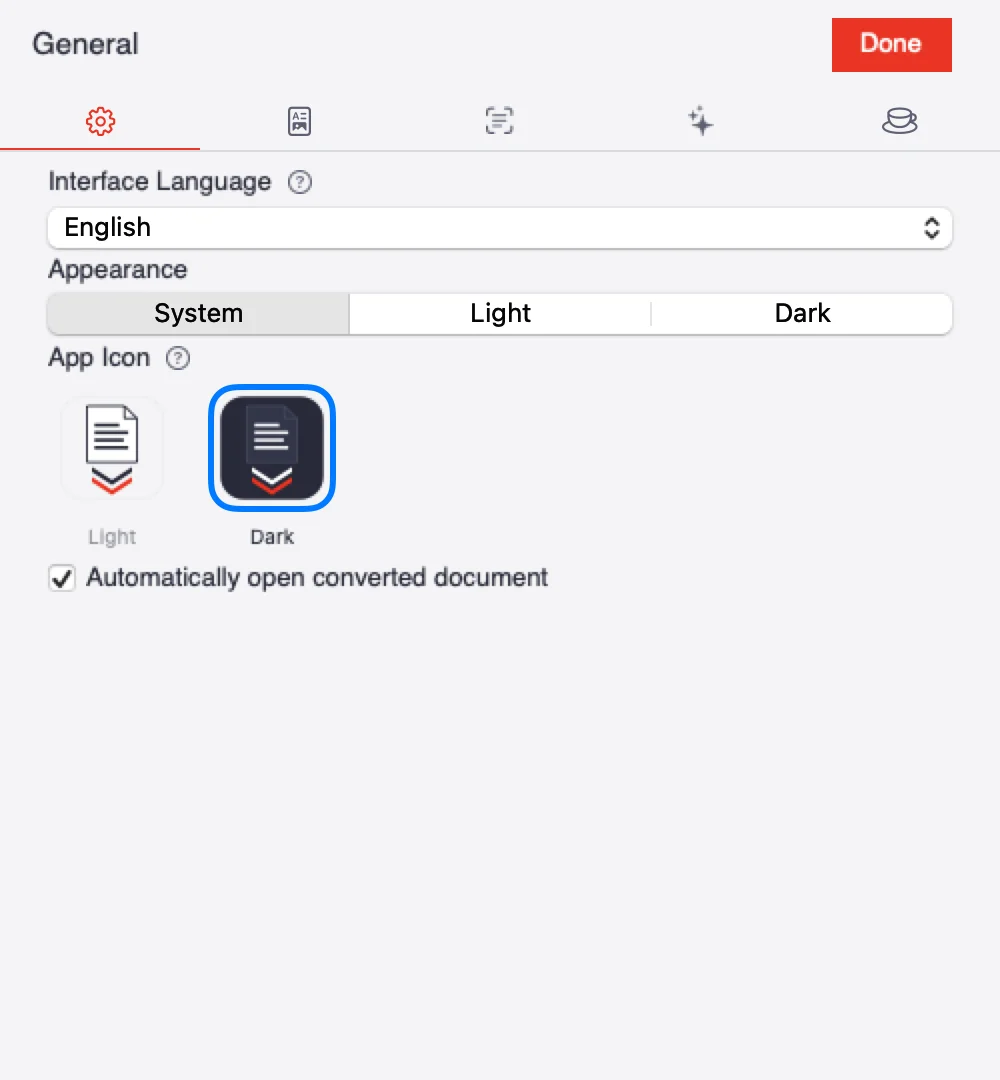
The General area. The icons at the top switch between areas.
General
| Setting | What it does |
|---|---|
| Language | Deutsch, English, Français, Español, Italiano or System. Restart the app to fully apply the language. |
| Appearance | System, Light or Dark. |
| App Icon | Light or dark icon in the Dock and in Finder. |
| Automatically open converted document | Opens the result straight after the conversion. |
Output: save location
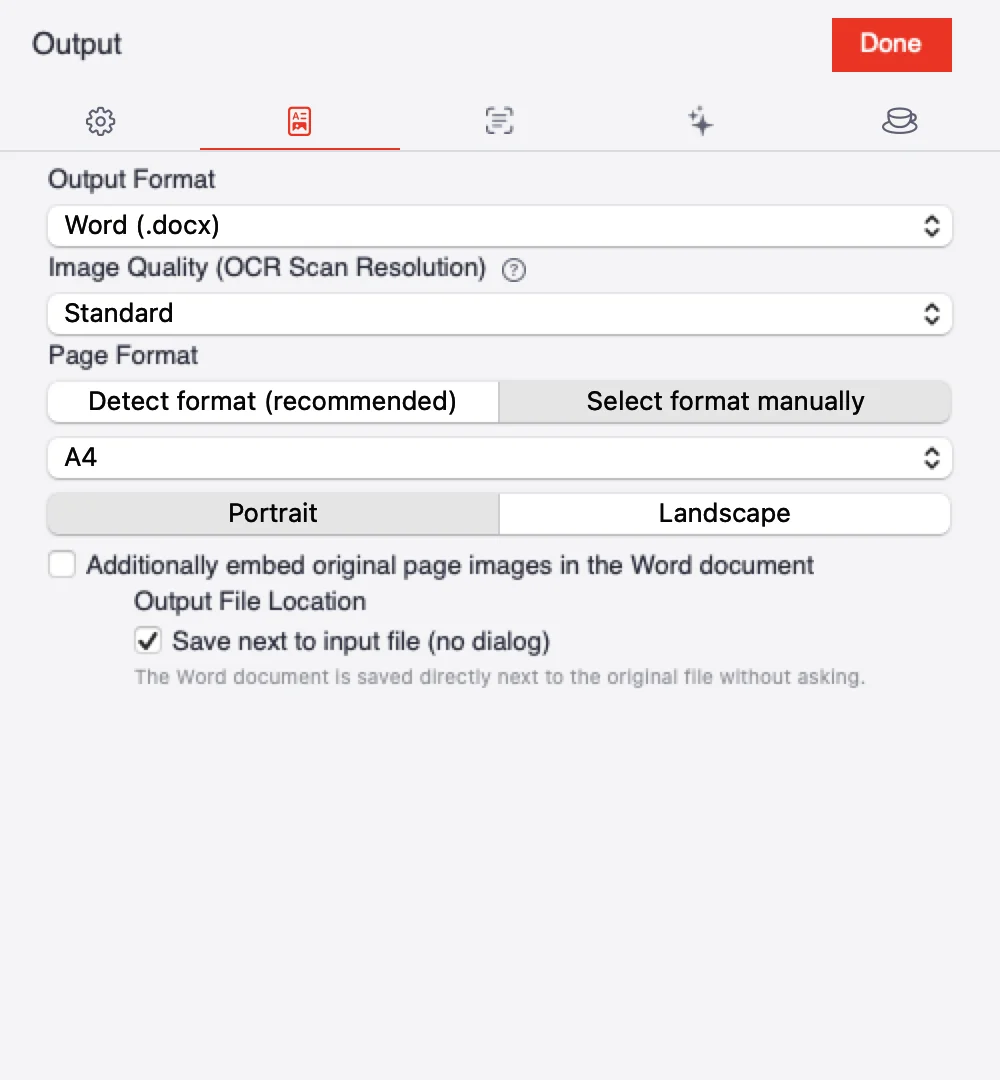
The Output area with format, quality and save location.
With Save next to input file (no dialog), Cnvrtr puts the document right next to the original without asking. If it is off, Cnvrtr asks for a name and location every time; for several files, for one shared destination folder.
Output: quality & format
Quality & format
| Setting | What it does |
|---|---|
| Output Format | Word (.docx), RTF (.rtf) or OpenDocument (.odt). Custom Word templates only apply to .docx. |
| Image Quality | Draft (fast), Standard, High or Maximum (slow). Higher quality recognises small print better but takes longer. |
| Page Format | Detect format (recommended) takes size and orientation from the original. With Select format manually you set A4, A3, US Letter or US Legal and Portrait or Landscape. |
| Additionally embed original page images in the Word document | Adds an image of each original page to the document, to compare with the recognised text. |
Text & Recognition: typography
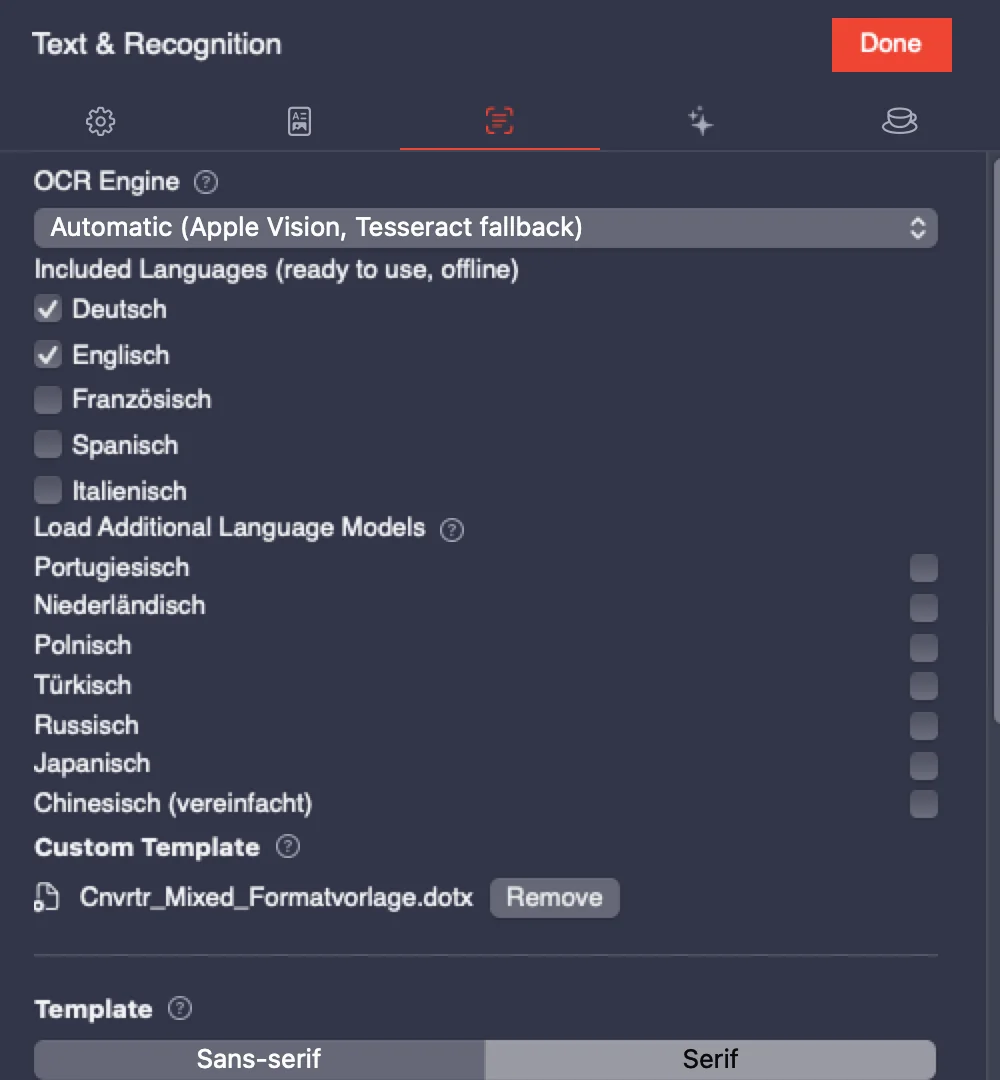
The Text & Recognition area, here in dark mode.
Here you decide how the finished document looks: font, size and bold for headings H1 to H6, body text and small text such as footnotes. The Template resets everything to a clean standard, either Sans-serif or Serif; after that you can change individual levels.
Under Custom Template you can load a Word template instead (.dotx or .docx). Its styles then define the look, and the settings below are ignored. This only works with the Word (.docx) output format.
Text & Recognition: OCR
| Setting | What it does |
|---|---|
| OCR Engine | Automatic uses Apple Vision and falls back to Tesseract for other languages. Apple Vision is very accurate. Tesseract works in many languages and offline. |
| Included Languages | German, English, French, Spanish and Italian are ready to use straight away, also offline. |
| Load Additional Language Models | Click Load to fetch more languages once from the internet. After that they work offline too. |
AI
Optional AI post-processing is described in chapter 4 .
Support
This is where you enter your supporter code, see chapter 6 .